Guides Confirmed
GTA 6 Best Settings on PS5: Every Option Explained
Every GTA VI settings tab on PS5, checked on launch night: what each option does, what to change first, and why there is no performance mode toggle.
Quick answer Updated Nov 19, 2026, 12:31 AM EST
On PS5, change Movement Speed first (ours was set to Walk), turn on Subtitles, and switch on Mute Licensed Music if you record or stream. The in-game Display tab has no performance or quality mode: its 13 options are HDR, safe zone and visual effects.
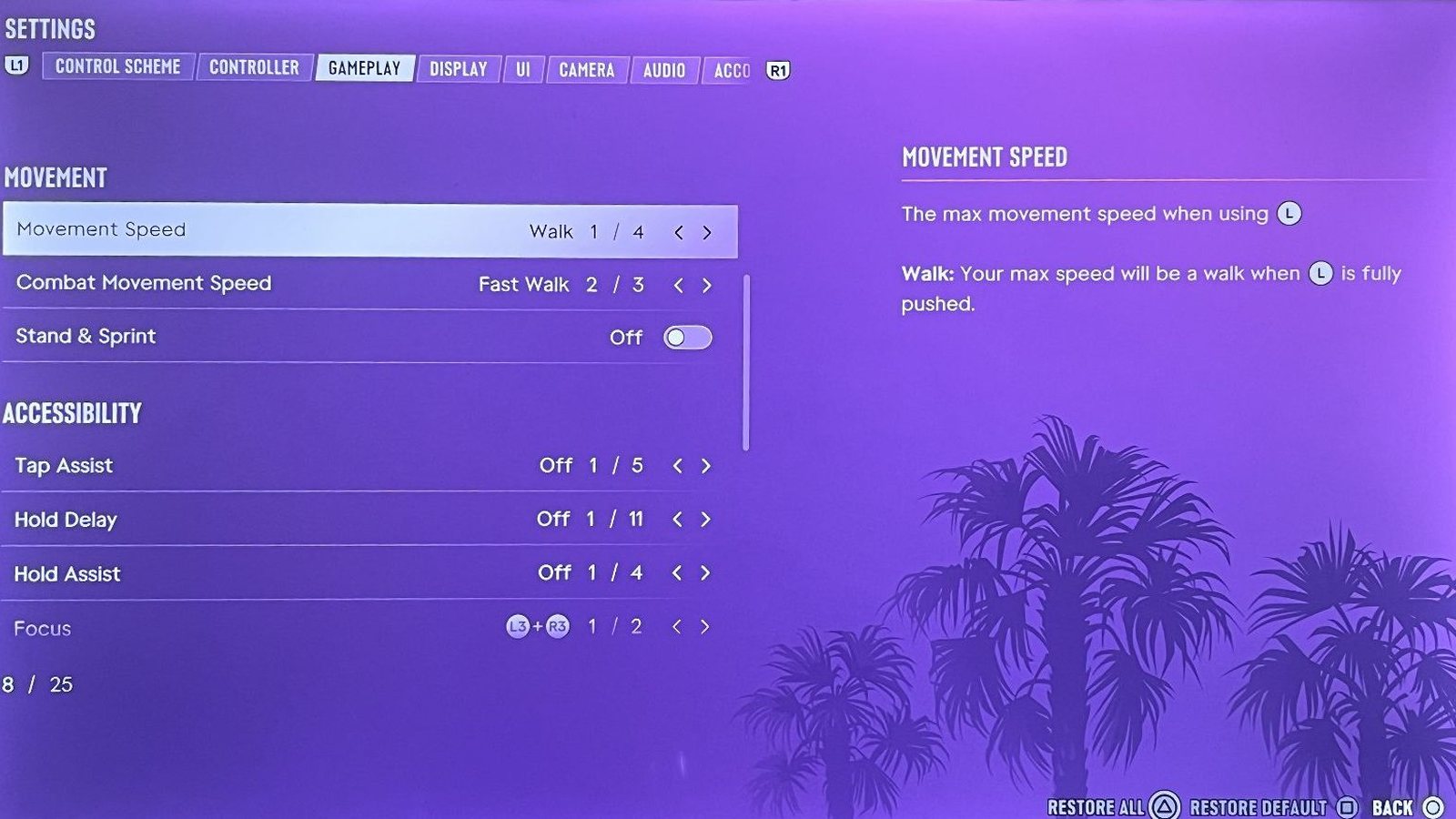
Change Movement Speed first. On our PS5 it was set to Walk, so pushing the stick all the way only walks. Then turn on Subtitles, and if you record or stream, switch on Mute Licensed Music. There’s no performance or quality mode in the game’s Display settings.
Confirmed
Everything here comes from GTA VI’s own settings menu on our PS5, photographed on launch night (November 19, 2026). Values are what our console showed then; “tips” are our suggestions, not Rockstar’s.
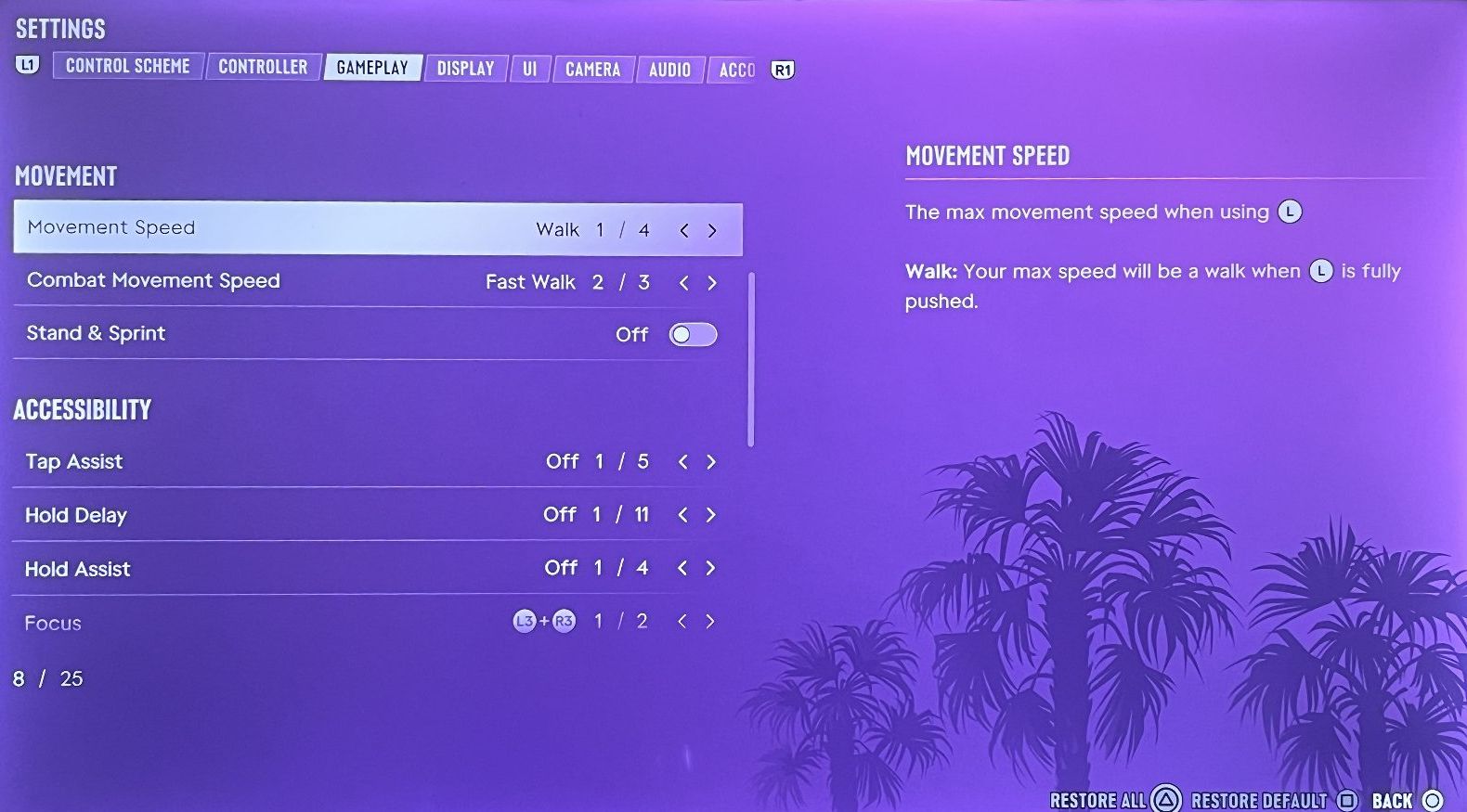
The settings to change first
| Setting | Where | What ours showed | Tip |
|---|---|---|---|
| Movement Speed | Gameplay → Movement | Walk (1 of 4) | Pick a faster option if walking feels slow. Rockstar: “Your max speed will be a walk when L is fully pushed.” |
| Subtitles | UI → Subtitles & Captions | Off (1 of 3) | Turn on if you miss dialogue. |
| Mute Licensed Music | Audio → Setup | Off | Turn on before recording or streaming. |
| Targeting | Gameplay → Combat | Partial (2 of 3) | Partial: “Aiming will move towards a nearby target but will not lock on.” |
| Aim Assist Strength | Gameplay → Combat | 4 | Raise for more help, lower for more control. |
| Motion Blur Strength | Display → Visual Effects | 3 | Lower it if you get motion sick or want a sharper image. |
| Camera Shake / Camera Bob | Camera → Comfort | On / 10 | Turn down for comfort. |
| Cinematic Kill Shot / Vehicle Crash Frequency | Camera → Cinematic | 3 / 3 | Lower to see fewer slow-motion moments. |
Graphics: is there a performance mode?
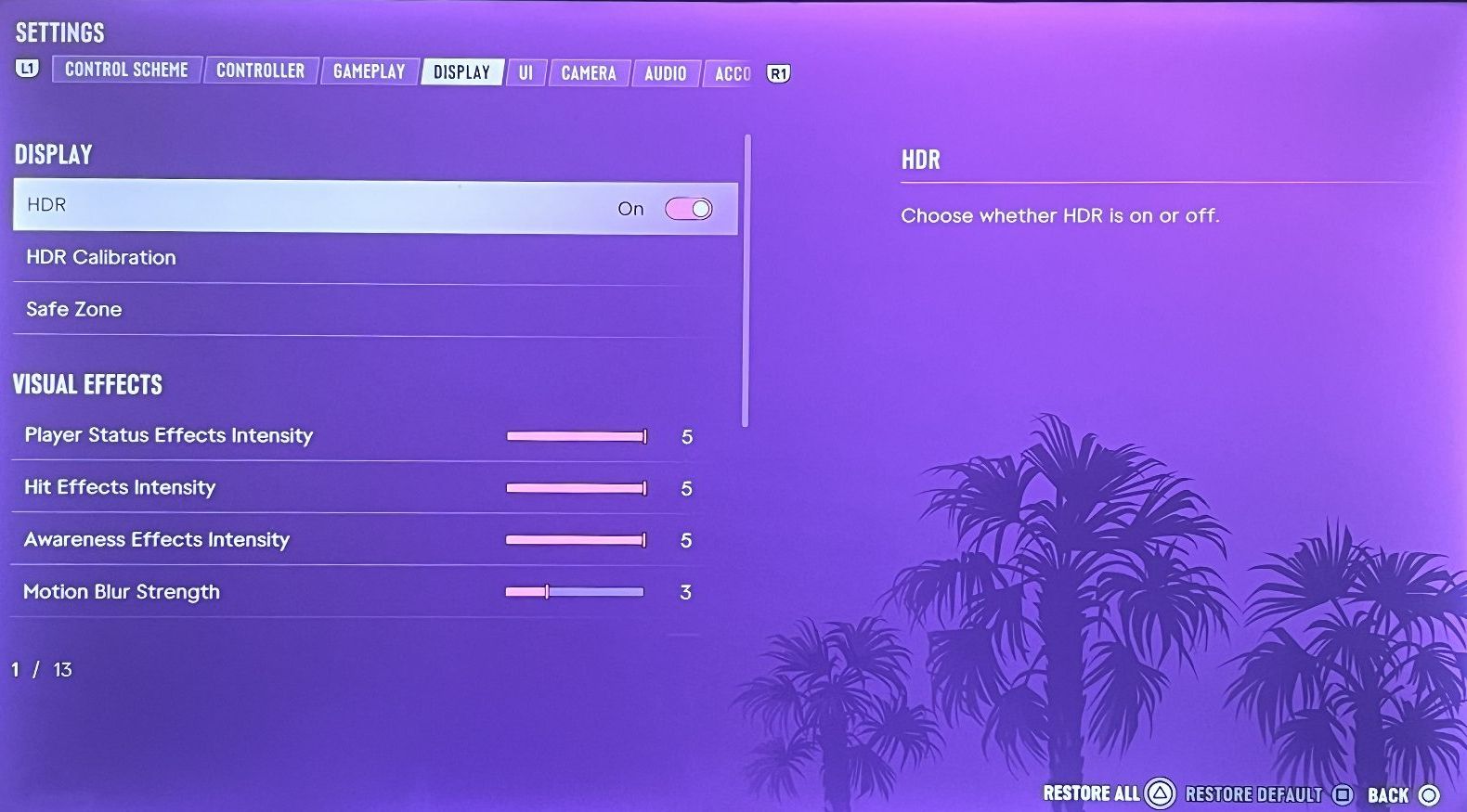
Not in the game’s own menu. The Display tab has 13 options and none of them is a performance or quality mode:
- Display: HDR (on/off), HDR Calibration, Safe Zone.
- Visual effects: Player Status Effects Intensity, Hit Effects Intensity, Awareness Effects Intensity (all 5 on ours), Motion Blur Strength (3).
- Content: Dismemberment (on/off), Blood & Gore Intensity (3 levels; ours was High), Flashbang (2 options; ours was Bright).
- Accessibility: Focus Trail Colorblind Mode, Brightness Reduction, High Contrast Shaders (“Applies a high contrast color to entities and interactions in world”).
Tip: if colors look washed out or too dark, run HDR Calibration once.
Every settings tab at a glance
The menu has eight tabs. Switch tabs with L1 and R1.
| Tab | Options | What’s in it |
|---|---|---|
| Control Scheme | 9 | 3 control presets, plus layout previews. See GTA 6 controls. |
| Controller | 19 | Aim and look sensitivity, inverted controls, DualSense features |
| Gameplay | 25 | Combat, movement, accessibility |
| Display | 13 | HDR, safe zone, visual effects |
| UI | 66 | Text size, subtitles, minimap, reticle, HUD, notifications, units |
| Camera | 24 | On foot, vehicles, comfort, aircraft, underwater, cinematic |
| Audio | 15 | Setup, volume, narration |
| Account | 9 | Rockstar Games account, GTA+ Boosts, legal |
Controller
- Aim & look sensitivity: Horizontal/Vertical Look Sensitivity, Horizontal/Vertical Aim Sensitivity, Look Acceleration, Aim Acceleration (all 7 on ours), and Aim Response Curve (4 options; ours was Standard).
- Inverted controls: Look, Movement and 3D Map Rotation (4 options each), plus Aircraft Movement (on).
- DualSense features: Vibration & Haptics Strength (10), left and right stick Deadzone (4 each), Adaptive Triggers Resistance, Adaptive Triggers Vibration, Touch Pad Button (ours opened the Map) and Light Bar Effect.
- Adaptive Speed Limiter (on, on ours): “Maintains the vehicle at a reasonable speed for the road you’re on when you hold R2 to the resistance point.” Handy for cruising.
Gameplay
- Combat: Targeting, Aim Assist Strength, Shooting Assist, Drive-By Assist, Quick Draw, Cover Selection (ours: Camera & Movement), Holster in Vehicle (ours: Automatic).
- Movement: Movement Speed, Combat Movement Speed (ours: Fast Walk), Stand & Sprint.
- Accessibility: Tap Assist, Hold Delay, Hold Assist, Focus (L3 + R3 on ours), hold or press for Directional Button Actions, Aiming, Interact, Loadout and Nitrous, a Fishing control option, Simplified Mini Games, Auto Drive (ours: Restricted), Auto Equip Helmet, Accessible Combat and Reduced Vehicle Damage.
- Accessible Combat “reduces enemy health and damage taken by your character.” Rockstar warns it “will significantly change the balance and experience of gameplay.”
UI (HUD)
- Scaling & readability: Language (12), UI Text Size (4; ours was Small), Color Adjustments, Map Blip Size, Minimap Blip Size, In-World Marker Size.
- Navigation: Minimap and Compass (ours: Dynamic), Minimap Size, GPS Route, GPS Turn Indicators, In-World Markers, Door Markers, Interaction Markers, Altimeter.
- Reticle: Persistent Center Dot, Reticle Hit Markers, Reticle Size, Reticle Shape (4 options), reticle visibility sliders, Reticle Messages and Projectile Arc.
- Combat HUD: Weapon Preview, Ammo, Threat Indicators, Damage Region Highlights.
- HUD notifications: Ticker Feed, Criminal Profile, Relationship, Help Text, Reminder Tips, Objective, Mission Update, Phone Notifications. Rockstar warns that turning Objective off “will make parts of the game much more difficult to play.”
- Player & vehicle status: Player Vitals, Wanted Stars, Heat Indicators, Money, Vehicle Name & Status.
- Units of measurement: Distance, Weight, Temperature and Clock Format (ours: Imperial, Pounds, Fahrenheit, 12 Hour).
Camera
- On foot and vehicles: camera Height (ours: Medium), follow speeds and follow delays for driver and passenger.
- Comfort: Camera Preferences (remembers your camera for on foot, vehicles, bikes, boats and aircraft), Weapon Sway, Camera Shake, Camera Bob, Phone Display.
- Aircraft and underwater: follow speeds and roll options.
- Cinematic: Cinematic Kill Shot Frequency, Cinematic Vehicle Crash Frequency (slow-motion moments), Idle Camera.
Audio
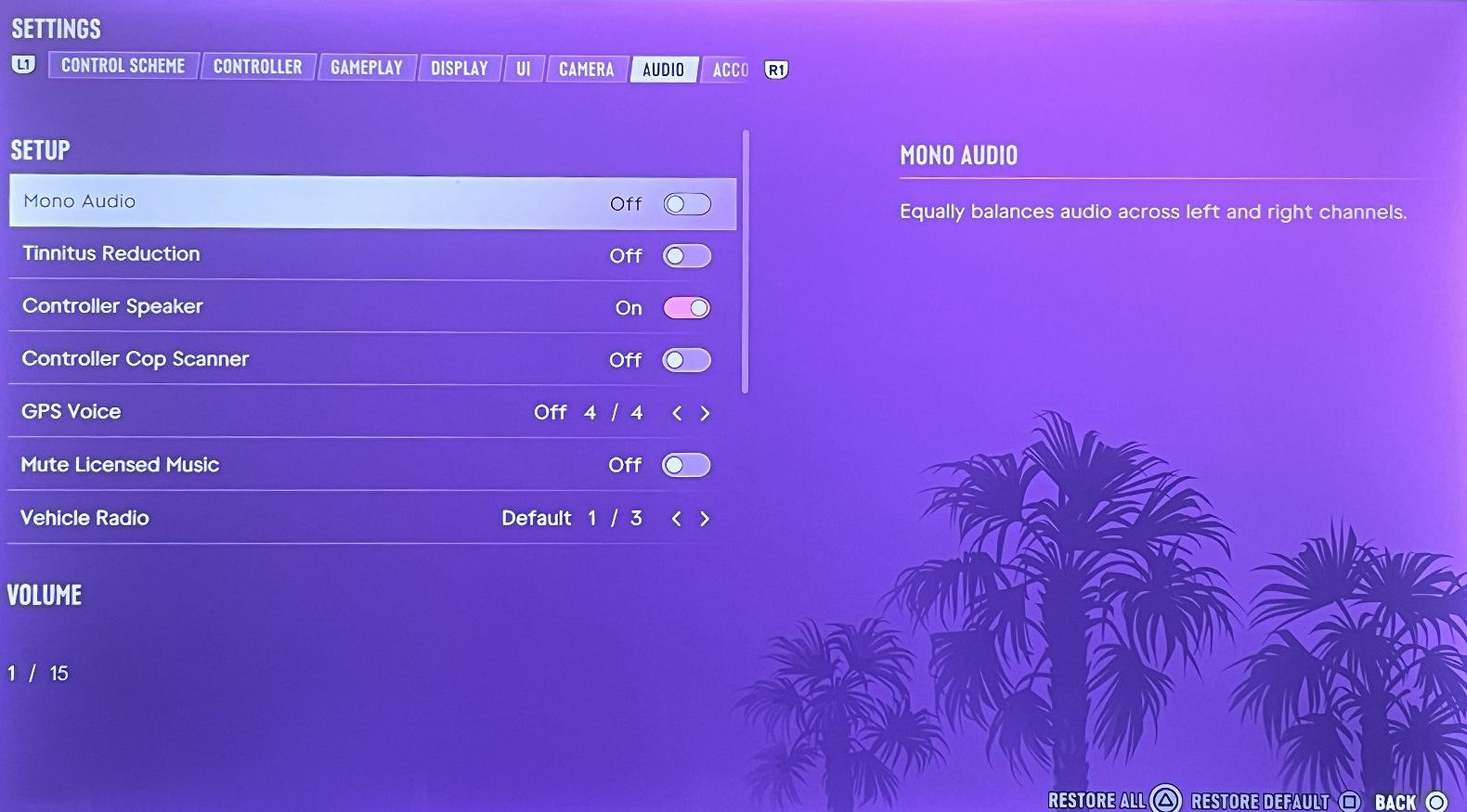
- Setup: Mono Audio, Tinnitus Reduction, Controller Speaker, Controller Cop Scanner, GPS Voice, Mute Licensed Music, Vehicle Radio.
- Volume: Master, SFX, UI, Dialogue, Music and Media sliders (all 10 on ours).
- Narration: Screen Narration and Audio Descriptions for cutscenes (English only).
Account
Customer Support, Rockstar Games Account, GTA+ Boosts (shown locked on ours), Credits, and the legal pages.
Quick answers
Does GTA 6 have a performance mode on PS5?
Why does my character walk so slowly in GTA 6?
Can you mute the licensed music in GTA 6?
Can you turn off blood in GTA 6?
Does GTA 6 have aim assist?
Sources
Official = Rockstar Games or the platform holder. Reported = another outlet’s reporting we could not check against an official page; it’s labeled wherever it’s used.
- Community Neon Atlas: GTA VI settings menu on PS5, photographed on launch night (our own copy) (Neon Atlas) accessed Invalid Date
Update history
- : Published from our own PS5 settings screenshots on launch night.
Spotted an error? Send a correction; we fix verified errors quickly and note them in the update history.